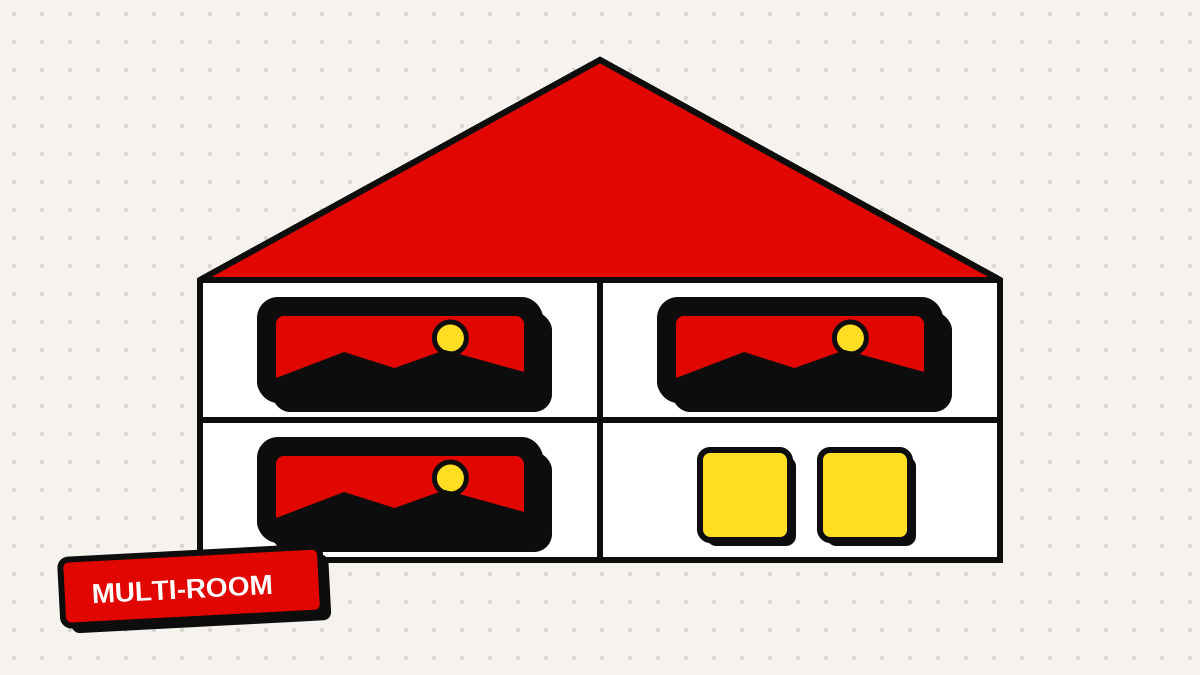
Once Zorba IPTV is running on the main TV, the next question is usually: “Can we have it in the bedroom too? And the kitchen?” The answer is yes, with a little planning. A multi-room setup comes down to three things: the right number of simultaneous streams, a suitable device for each TV, and a home network that can feed them all. This guide walks you through each one.
Start with a simple plan
Grab a piece of paper and list:
- every TV or screen you want to use;
- what device each one will use (built-in smart TV app, streaming stick, box or phone);
- how many of those screens might play at the same time, for example on a Saturday evening;
- how each device connects: cable or Wi‑Fi.
That list tells you everything you need for the next steps, and it is exactly what our team will ask if you message us for advice.
Simultaneous streams: the key number
You can install Zorba IPTV on many devices, but the number of screens that can play at the same moment depends on your subscription. If two people try to watch on separate TVs with a single-stream login, one will be interrupted. When you order, tell us how many simultaneous streams you need, and we will set your subscription up accordingly.
Choose a device for each TV
- Recent smart TVs (especially Android TV and Google TV models) can often run a player directly, so no extra hardware is needed.
- Streaming sticks are the easiest upgrade for older or slower TVs. They are inexpensive, plug into HDMI and run current player apps.
- Android TV boxes, Apple TV or MAG boxes are ideal for the main TV, especially if you can connect them with an Ethernet cable.
- Phones and tablets make great extra screens for the kitchen or a child’s room. See our Android setup guide.
Using the same player app on every device keeps things familiar for the whole family, and some players can sync favourites between devices.
Bandwidth for every room
Add up the streams that might run at once. As a guide, per screen:
| Setup | Example | Aim for |
|---|---|---|
| 2 screens | 4K living room + HD bedroom | 40 Mbps |
| 3 screens | 4K + two Full HD | 65 Mbps |
| 4 screens | 4K + two FHD + phone in HD | 80 Mbps |
| Busy home | Several screens plus gaming and video calls | 100 Mbps+ |
These figures include some headroom. Test your real speed in the evening, when your provider’s network is busiest, and go by the lowest of a few results.
Make sure Wi‑Fi reaches every room
The router may be fine for the living room but weak two floors up. Signs of poor coverage include buffering only in certain rooms, or a speed test that drops sharply away from the router. Fixes, from cheapest to most effective:
- Move the router to a central, raised, open position.
- Use the 5 GHz band for nearby rooms; 2.4 GHz reaches further but is slower and more crowded.
- Powerline adapters carry the connection through your electrical wiring to a distant room, often with an Ethernet port for the TV device.
- Mesh Wi‑Fi places several access points around the home for strong coverage everywhere.
- Ethernet cable to the most important TV is still the gold standard.
Managing logins
- Keep your login details in one safe place, such as a password manager, so you can set up new devices quickly.
- Do not share your login outside your household. It can trigger connection conflicts and break our terms.
- If you replace a MAG box, send us the new MAC address so we can move your activation.
- Set parental locks on devices children use.
Example setups
Couple, two TVs
Living room: Android TV box on Ethernet, watching in 4K. Bedroom: smart TV app or streaming stick on 5 GHz Wi‑Fi, watching in Full HD. Two simultaneous streams, around 40 Mbps.
Family of four
Living room: Apple TV or Android box, wired. Kids’ room: streaming stick with a parental lock and a kids favourites list. Kitchen: tablet in HD. Teen’s phone in HD. Three or four streams, 65–80 Mbps, mesh Wi‑Fi upstairs.
Get a personalised recommendation
Send us your list of TVs, devices and your speed test result on WhatsApp, and we will suggest the simplest multi-room setup and the right number of streams. Ready to order? See the Zorba IPTV plans, and once every screen is running, use our picture settings guide to make them all look great.